Guest user
Jiglu blog

New entries More...

Changes to Jiglu Tags widgets

In early July we'll be launching a brand new Jiglu Tags widget. The new one will incorporate the features that our extra 'New tags' and 'Tagmap'  widgets currently offer. Because of this we will be withdrawing those two widgets.

  • If you have the 'New tags' or 'Tagmap' widgets installed on your blog then you should remove them. If you don't, then once we upgrade they won't show any more.
  • If you only have the main 'Autotag' widget installed then you don't need to do anything at all - once we upgrade you'll get the brand new widget.

We're really excited about the new version - check back here for more details soon...

10 Things You Can Do With Jiglu Tags - #10. Build a community around your blog

So your blog is starting to build an audience and readers don't want just to comment on the entries you post, they'd like somewhere to talk about other things too.

You might decide to use a web forum, but the trouble is it would be on its own URL somewhere else and the two sides wouldn't join up very well. Every time you wanted to talk about something in the forum on your blog you'd have to manually link to it, and every time you wanted to talk about something in the blog... you get the picture.

That's where Jiglu comes in. Once you've got a site being tagged by Jiglu Tags then it's very easy to turn it into a complete community. Log on to Jiglu and at the bottom of the page you'll find a big graphic encouraging you to join the Jigluhood, our communities service. Click on that, and follow the sign-up link on the Jigluhood home page and you can then upgrade your account by telling us your name and confirming your e-mail address.

Now when you return to your home page you'll find a link that will take you to the community space where your tags are hosted. It's then very easy to share that with your readers and start your own discussions or add to the wiki. Then each time someone clicks on a tag in your blog they'll be shown not just the posts on your blog on that topic, but also the discussions and wiki entries in the community too.

There's a whole lot more power to the Jigluhood too. And in a few days I'll start telling you ten things you can do in the Jigluhood.

10 Things You Can Do With Jiglu Tags - #9. Tag anything you want

When we launched the first version of Jiglu Tags last October you had to have a web site live on the Internet to use it. Now we've opened up our new tagging API so you can tag any content you want.

You'll find all the details over in our new Jiglu Developers space.

(Just pretend I wrote this a week ago, okay? For some reason it always ends up with me writing documentation and it's been a busy week...)

10 Things You Can Do With Jiglu Tags - #8. Add another site

Got more than one site? Wish you could allow people to hop between them when you're talking about the same topic? That's one of the things Jiglu Tags are great for.

You can easily add extra sites by logging on and choosing the big blue 'New site' button on your home page. Once you've given the details, just install the widget for the new site and you're up and running. Now any time that someone clicks on a tag on one of your blogs they'll be pointed at any relevant pages on the other.

For too long content has ended up in unconnected silos. Now we're playing our part in helping to get it out, connected together and building additional traffic.

10 Things You Can Do With Jiglu Tags - #7. Manually assign tags

(I didn't realise till I started writing this series quite how difficult it would be not to start every paragraph with the word 'So'... But anyway...)

You've seen already how easy it is to add, edit and delete tags. Since our April update you can now also manually assign tags to tagged pages. If you've got a site using Jiglu Tags then log on to Jiglu and select the 'Pages' tab at the top of the page. Here's where you can see all the pages that are being tagged and what those tags are. Click on the 'Edit tags' button next to a page and you can assign your own tags.

There's two ways of doing this:

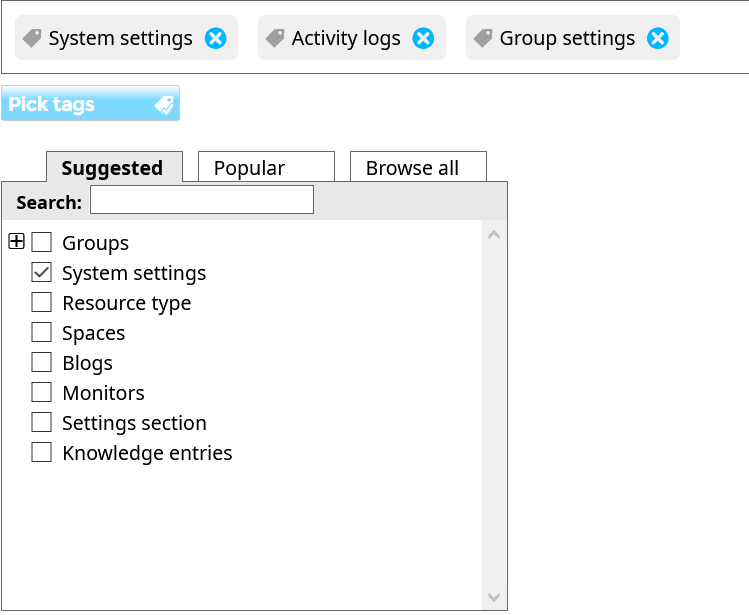
  • If you know what tags you want to use then you can just type them into the input box. Each tag is separated by a comma and underneath the input box you'll see a summary from the system of how it understands what you've typed.
  • If you're not sure of a tag but you think it's there already then click on the 'Browse tags' button. This will open up the tag selector, where you can choose from all the tags available, either by paging through them or by using the search box.

When you save the tags for this particular page the system will automatically create those whose names were in the input box and it didn't find already in the system.

In the future we're looking at picking up automatically any tags we find from the feed on your site. You can also update them using our new tagging API - more of which next week.

10 Things You Can Do With Jiglu Tags - #6. Add a tag

With Jiglu you don't just have to use the tags that the system automatically suggests. You can also add your own manual tags as well - perhaps when you want a tag to be there but there isn't enough content yet to have it automatically appear.

Log on to Jiglu, select the Tags tab at the top of your personal home page and then choose the 'Add a new tag' link on the sidebar. Enter its name in the form and hit the Save button and it'll be added. Even better, Jiglu will go through all your past content and link it to that tag when it appears and without having to reindex it all.

When you add a tag - or if you edit an existing tag by clicking the Edit button next to its name on the Tags index - you can also give it alternative names that it's known by. For example, you might want to give BBC an alternative name of the British Broadcasting Corporation. For automatic tags the system will try and add alternatives itself for some of the common word endings and plurals.

You can also associate tags with other tags when they have a connection. For example, you might want to associate a BBC tag to BBC News or BBC Radio. Under the covers, Jiglu's tags are built with an implementation of a standard called Topic Maps. At the moment we hide a lot of the topic map features but as we do more work on the admin interface over the next few months we hope to make more of them available as topic maps are an extremely powerful way to manage tags and taxonomies.

10 Things You Can Do With Jiglu Tags - #5. Delete a tag

Jiglu's intelligent tagging tries to do the best job it can but the English language is messy. People write things in all sorts of different ways and we all make mistakes - writing a post quickly when you're tired after work and hitting the wrong keys for example.

For those reasons Jiglu sometimes makes mistakes in its tags. It may correct them again later as you add more posts and it updates the tags but it's your blog and we believe that you should be in total editorial control over what goes on it if you want to.

If you've got Jiglu indexing your site then when you log on you'll find a 'Tags' tab at the top of the screen. Click on that and you'll get a list of all the tags for your site. To delete a tag just select the checkbox next to it's name and hit the delete button. Once you've confirmed you really want to do that it's gone, never to return again.

One quick tip: if you want to do this more quickly and save time paging through all the results then choose the 'All' option in the paging drop-down. You may get a really long page but it makes your job easier.

10 Things You Can Do With Jiglu Tags - #4. Get feeds of everything

Part of the philosophy that's guided us in Jiglu is giving you information in a wide variety of ways so you can choose those that suit you most. After all, it's your data so why shouldn't you be able to do with it what you want?

If you're a visitor to a site with the Jiglu Tags widget on then when you click on a tag to find out what else it knows you'll find an orange feed icon at the top of the results. Click on that and you can get a feed that will keep you updated each time something new comes in that matches that tag.So, for example, if you read the Superconductor blog and just want the opera reviews, you'll can subscribe to a feed for that tag.

If you run a site you'll find a link to a feed of all the new tags in your sites if you select the Tags tab at the top of the screen when you log on and then click on the orange feed icon. There's a few others too, which we're in the process of making more easily available as they were originally more designed for the Jigluhood communities. We'll come back to them later...

10 Things You Can Do With Jiglu Tags - #3. Get a feed with your automatic tags

Okay, this a quick one today after the long posts for #1 and #2.

Log on to Jiglu and at the top of your home page you'll find a tab labelled 'Pages'. Click on that and you'll get an index with all the pages in your site that Jiglu has picked up and the tags it's assigned to each of them. Follow the feed icon at the top of the list and you'll get a feed version.

By default the feed is in Atom 1.0 format. If you want RSS 1.0 change the end of the URL from +atom to +rss. If you want RSS 2.0 change it to +rss2.

A quick word of warning though. It probably isn't a good idea to make this the main feed of your site at the moment or Jiglu may get confused when it crawls your site for new pages. We're working on that...

10 Things You Can Do With Jiglu Tags - #2. Get your widget the way you want it

So you've got the widget installed on your blog and it's happily tagged everything but it doesn't look quite right alongside the style of your blog. That's where our widget settings come in.

Log on to jiglu.com and there on your home page under 'My tagged sites' you'll find a 'Change how the widgets look' option. This is where you can decide what you want to appear in your widget and how it should be styled.

What goes in

First you can decide the kind of tags you want it to include - topics, people or events, which I talked about yesterday. There's also another option for a sort-of-tag, 'Show links', that we turn off by default. This keeps track of every link to other sites that you post to your blog - turn it on if you want people to be able to get a list in the widget. You might also notice that when those links appear on your pages we add a tooltip with the title of the page being linked to so people know what they're getting before they visit.

The Jiglu widget also looks through the text on your page and adds a link to the tags that you mention. That way visitors can explore further when they're reading a blog entry and find you talking about a particular topic that they want to know more about. It'll only do it once per paragraph and only for the <p>, <blockquote> and <li> elements in HTML. Don't want that? Turn off the 'Put links in the text' option.

Listing every tag on a page, particularly on your blog's home page, could make the widget rather long. Because of that we 'fold' the sections in the widget to make it smaller until a visitor decides they want to explore further. Normally it does this if there's more than 10 tags in total but you can choose the number or to have it always happen.

Fitting your blog's style

You can also choose the colours the widget uses so it fits in with the style of your blog. When you first tag a site it will have a black border, white background, dark blue headings and black links but the choice is up to you. If you're not using a light background on your blog then you may want to make the border the same colour as the background, but it's really up to you.

You can also choose how wide the widget is and whether it lists topics, people, events and links one after each other or side by side. And if you chose the 'Put links in the text' option then you can choose the colour of those links, which will have a dotted style so people know they're different from the usual ones. You can always overwrite that in your blog's stylesheets by setting a style for the 'jigluLink' class.

What about the overlay?

The overlay is what we call the layer that pops up inside your blog that lets you explore what you've written that mentions particular tags and the tags themselves. At the moment the style for this is fixed and you can't change it. However, that will be changing soon.

Coming up

Right now we're working on a new generation of the widget and overlay. We've had some good feedback from users since we launched Jiglu Tags in October and it's all gone into our pondering on how to improve it.

We can't tell you everything yet, but our biggest requirements were that it should be smarter about giving you the most relevant information and should allow you to style and brand everything to fit in with your site.

We're still extremely keen to have your feedback. What would you most like to see us improve in the widget? If you want to add your comments then log on and click the button to join this space on the blog home page. Alternatively we're always happy to hear from you at ....

About

The official Jiglu blog, with announcements of what's happening on the Jiglu service.

This space was created on 11 June 2006.

Search

Contact